Partner Console
Manage your Indeed API and service integrations.
Overview
Partner Console provides a central location to manage the integration of Indeed APIs and services into your product.
In the console, an app represents an integration with one or more Indeed APIs and services. Indeed configures your app during setup.
After Indeed configures your app, you can view and manage its credentials, use testing tools, and configure APIs and services in the console.
To use the console, sign in with your Indeed partner account. If you don't have an account, see Become an Indeed partner.
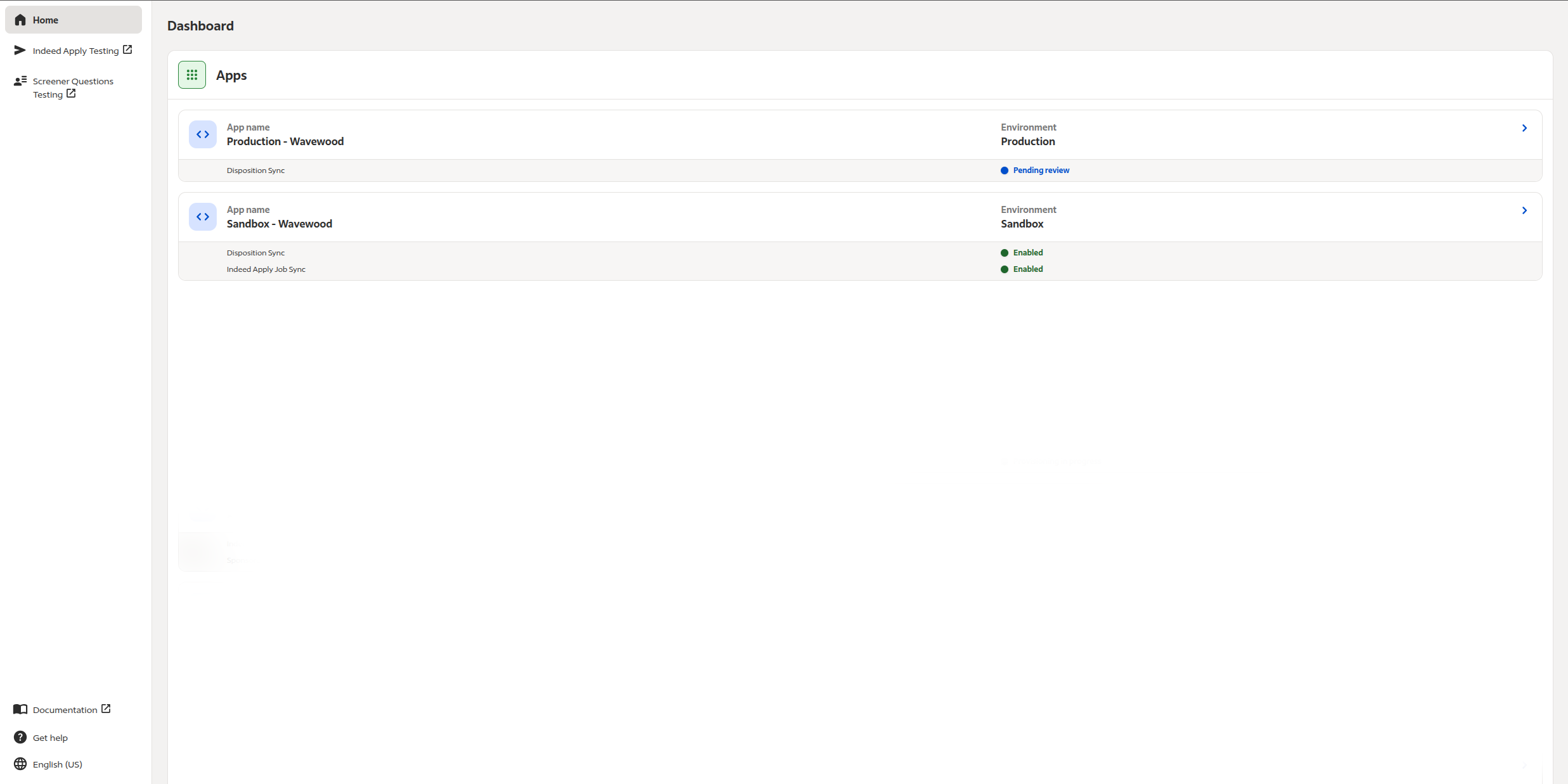
Dashboard
The Dashboard lists the apps associated with your account in alphabetical order. It displays each app's integrations with Indeed services and the provisioning and review status of each integration.
The Dashboard also displays relevant documentation and links to help and support.
APIs and services
Integrate Indeed APIs and services into your product. In the Partner Console, view the services your apps can access and request more.
On the Dashboard, select an app in the Apps list to open the app details page. The APIs and Services tab lists services for the app in descending order by most recent provisioning change.
Each service links to its documentation and, if available, its testing tool.
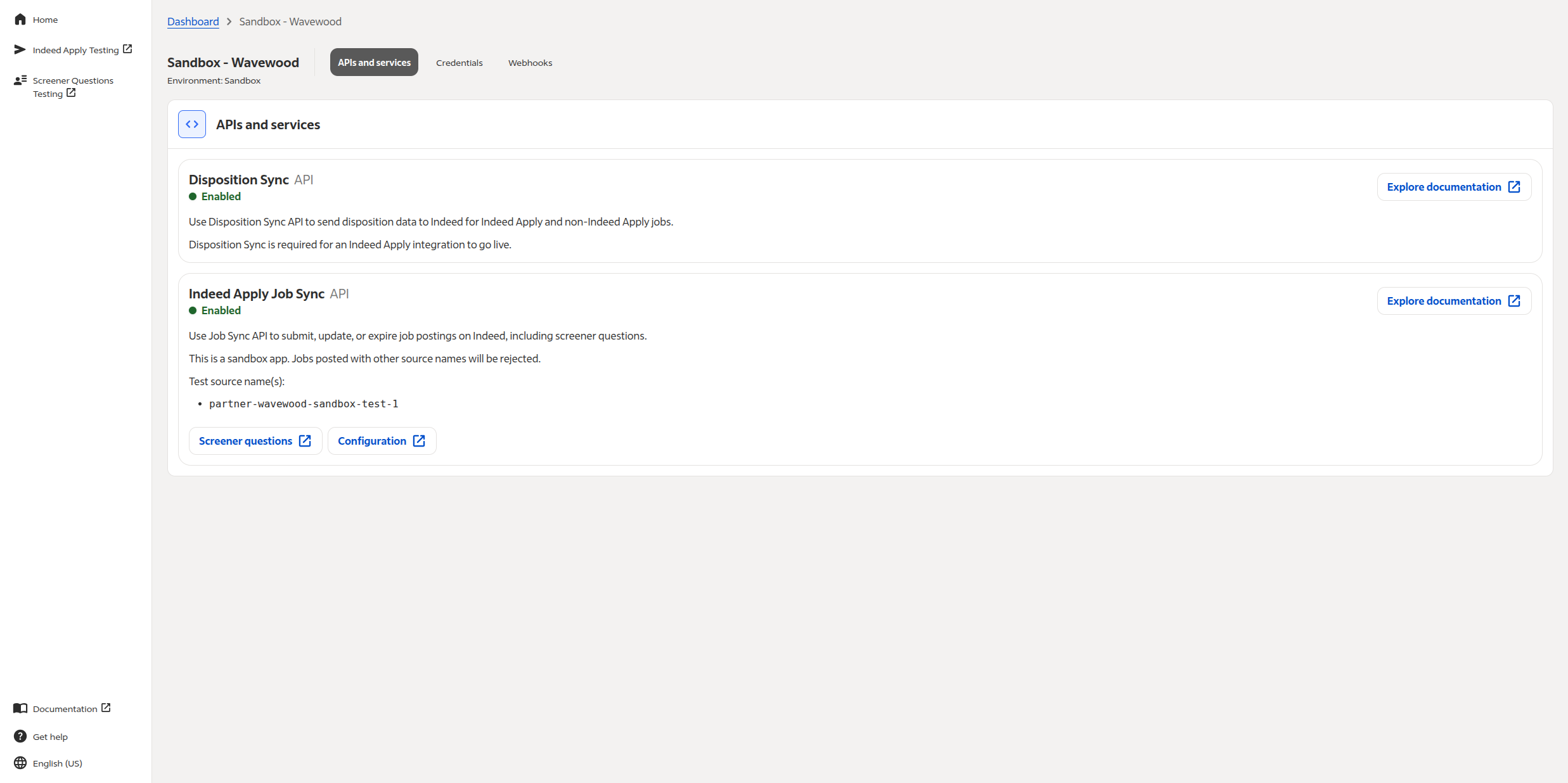
Partner Console supports these services:
| Service | Review required? | Description |
|---|---|---|
| Disposition Sync API | ✔ | Send job application disposition data to Indeed. Requires the same OAuth client as the Job Sync API. |
| Employer Data API | Create and update employer entities. Indeed provisions the Employer Data API with the Job Sync API. | |
| Job Sync API | ✔ | Submit, update, and expire job postings. Indeed provisions the Employer Data API with the Job Sync API. The Job Sync API is not available for apps that use these services:
|
Add a service
To add a service to an app:
- Contact your Indeed representative or marketplacesupport@indeed.com.
- Review the integration guides that Indeed provides after reviewing your request. A provisioning status appears next to the service on your app's Dashboard.
- Complete your integration.
Service provisioning status
After you request that Indeed add a service to an app, a provisioning status appears next to the service. The service provisioning statuses are:
-
Provisioning in progress: Indeed is provisioning the service.
-
Pending review: You are integrating the service. Request a review when you complete the integration.
-
Review in progress: Indeed is reviewing the integration.
-
Approved: Indeed approved the integration.
-
Rejected: Indeed rejected the integration.
-
None: The service does not require a review.
Credentials
View your app credentials and add secrets in Partner Console. Use these credentials, such as the OAuth client ID and secret, to integrate certain services.
On the Dashboard, select an app in the Apps list. On the app details page, the Credentials tab lists the app credentials with links to corresponding documentation.

OAuth client
For apps that use the OAuth credential type, the Credentials tab shows the OAuth credentials. To view the secret, hold the pointer over the text box. To add more secrets, select Add another secret.
Authorization code grant type (3-legged OAuth)
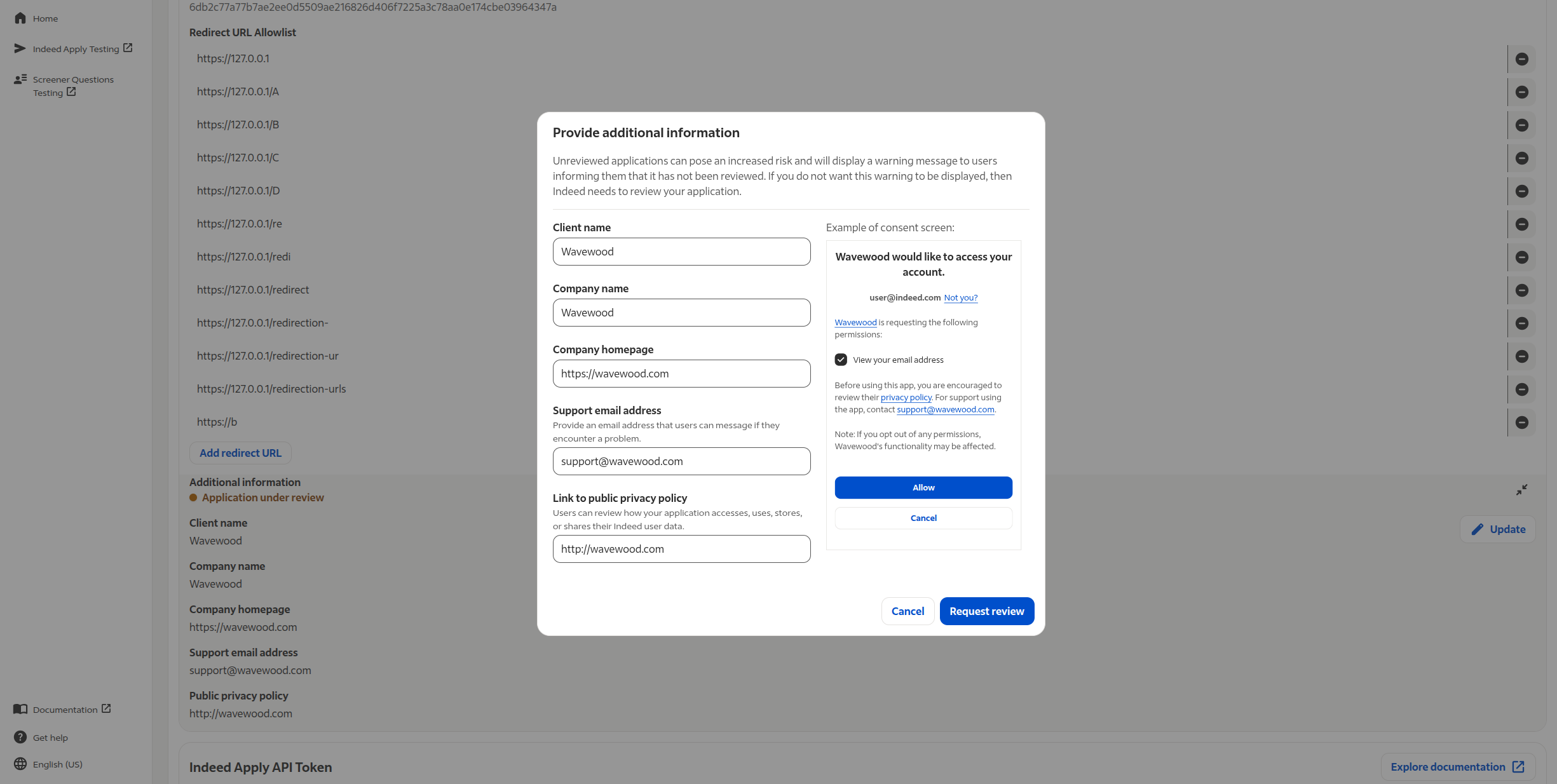
For apps that use the authorization code grant, Indeed starts a review when you create the credentials. When the authorization code grant is under review, (Review in progress) appears.
Add and delete redirect URLs in the Redirect URL Allowlist section.
To view the consent screen, update partner information, or resubmit the application, expand Additional information and select Update.
For more information about OAuth credentials, see Integrate with Indeed and call APIs.
Indeed Apply API token
For apps that use the Indeed Apply credential type, the Credentials tab shows the app client ID, which is the Indeed Apply API token, and the secret. To view the secret, hold the pointer over the text box.
For more information about Indeed Apply, see Indeed Apply.