- Integration overview
- Integration steps
- 1. Sign a Developer Agreement with Indeed
- 2. Authenticate
- 3. Create an XML feed
- 4. Configure Indeed Apply for your jobs
- 5. Add Indeed Apply screener questions
- 6. Receive application data from Indeed
- 7. Test your Indeed Apply configuration
- 8. Monitor integration health
- 9. Submit your XML feed for review
- 10. Send disposition data to Indeed
- See also
Indeed Apply integration guide for direct employers
Integrate with Indeed Apply, for direct employers and third parties acting on their behalf.
- By using this API and its documentation and building an integration, you agree to the Additional API Terms and Guidelines.
Integration overview
This page explains how direct employers integrate with Indeed. If you send an XML feed, with or without Indeed Apply, follow these guidelines.
Your XML feed controls how your jobs appear on Indeed. Adding Indeed Apply lets job seekers apply more easily, which can help you hire faster.
If you have questions, contact your Client Success representative. If you do not have one, use this web form.
To integrate with Indeed Apply, you need:
- A signed Developer Agreement between your company and Indeed. See 1. Sign a Developer Agreement with Indeed.
- A software developer who knows your systems and HTTP, XML, and JSON.
- A way to publish and refresh your XML feed, such as FTP.
- A way to publish screener questions to an HTTPS URL.
- Single requester rule: Only the party building the integration can request and hold the API key or SFTP credentials. Indeed does not allow proxy requests, where an employer requests a key for a third-party integrator.
The full process usually takes about six weeks to configure, test, review with Indeed, and deploy.
For an XML integration, publish an XML feed to Indeed on a regular schedule. To enable Indeed Apply on Indeed.com, add metadata to each job. That metadata shows screener questions in the application flow and tells Indeed where to send candidate information.
After you add Indeed Apply metadata and any optional screener questions, Indeed reviews the feed for technical quality and policy compliance.
Work with your Client Success representative to set up feed publishing and updates, and to review Indeed's feedback and required fixes.
Integration steps
1. Sign a Developer Agreement with Indeed
Sign a Developer Agreement with Indeed, then submit an integration request through Become an Indeed partner.
After Indeed approves your account, it enables access and sends a questionnaire about your integration.
2. Authenticate
Japan only
- Sign in to your Indeed account on Manage app credentials, then select Register new application.
- Enter your app name and description, select Indeed Apply as the credential type, then select Save and continue.
- Select Complete registration.
To get your Indeed Apply token, return to Manage app credentials. Use the client ID as the token.
Outside of Japan
To build an Indeed Apply XML integration, contact the Indeed Client Success team. After you sign the Developer Agreement, Indeed creates an app that connects Indeed APIs and services to your product.
To view your app and Indeed Apply API token, sign in to Partner Console:
- Use the client ID and client secret as the API token credentials.
- Include this API token in each job you post to Indeed.
3. Create an XML feed
To configure Indeed Apply, create and maintain an XML feed. This XML document defines your jobs and how they appear on Indeed.
When you create job listings in your system, your XML feed sends them to Indeed.
An XML feed includes:
- Basic feed nodes — Define general feed details, such as the XML version and encoding.
- Job feed elements — Define job-specific details. Include one set of these elements for each job that you want to appear on Indeed.
If you create a job through either the createSourcedJobPostings mutation or an XML job feed, expiration of the job requires an action on your part. You must explicitly expire that job.
Even if someone calls the updateSourcedJobPostings mutation or clicks Edit on the Indeed job details page for this job, you must explicitly expire that job.
See also:
createSourcedJobPostingsupdateSourcedJobPostings- Job details page (signed in to Indeed)
- Job Sync XML feed reference
4. Configure Indeed Apply for your jobs
To let job seekers apply quickly on Indeed, enable Easily apply with Indeed Apply.
Jobs with Easily apply get 12% more clicks. Job seekers can also apply with their Indeed Resume.
To configure Indeed Apply for your jobs:
- Add Indeed Apply configuration parameters to an
<indeed-apply-data>element for each job in your XML feed. - Set
postUrlin<indeed-apply-postUrl>so your system can accept applications from Indeed. - Make sure your system can parse and process the application data.
See also:
5. Add Indeed Apply screener questions
Screener questions help employers quickly see whether applicants meet their criteria, so they can spend more time connecting with candidates.
Indeed does not host screener questions for you. If your system supports them, you must implement them in Indeed Apply for Indeed to approve your integration.
To show screener questions in the Indeed Apply flow:
- Format your questions in JSON.
- Host them at an HTTPS URL.
- Put that URL in each
<job>with<indeed-apply-questions>under<indeed-apply-data>.
Schema versions
In January 2024, Indeed added schema versions for screener question configuration. Indeed updates the minor version when it adds features. The application payload shows the version as 1.X, such as 1.1 or 1.2.
Keep this value flexible so major or minor upgrades do not break your integration. Your screener question JSON does not need to match the minor schemaVersion.
Considerations
-
You can ask up to 500 questions.
Conversion drops sharply when you ask more than 20 questions.
-
Keep the questions file under 1 MB.
-
Use unique question URLs. Indeed caches question files and refreshes them every 24 hours, or sooner if a new request arrives after the cache is more than one hour old.
-
If you change the JSON at a question URL, or add resume standardization, switch to a new URL to clear the cache.
-
Do not request unnecessary personally identifiable information (PII) in a job description or during the application process.
-
When a job seeker starts Indeed Apply and Indeed requests questions, Indeed caches those questions.
See also:
6. Receive application data from Indeed
To receive application data from Indeed, specify a URL in the feed for each job. Indeed sends candidate information for that job to this URL as JSON.
Application delivery
To process applications programmatically, specify a URL that accepts POST requests from Indeed Apply.
The <indeed-apply-postUrl> parameter defines this URL. It must use HTTPS.
postUrl example
indeed-apply-postUrl=https%3A%2F%2Fyourposturl.comReturn an HTTP 2XX status code for every application your system receives successfully. Indeed Apply treats any other HTTP status code, POST timeout, or connection timeout as a failure.
The exception is, return HTTP 400 when the JSON payload is missing a required key.
If Indeed does not receive an HTTP 2XX because of a timeout or invalid response, it retries with exponential backoff. If delivery still fails after the last retry, Indeed marks the application as a terminal failure.
Do not validate application content during the POST. If you need to validate the content and disqualify the applicant, do that after the POST. If employer-side validation causes HTTP failures for job seeker data, Indeed might disable Indeed Apply for that company or for the entire feed.
See the Application delivery reference.
Do not redirect the POST to another URL, such as with a 301 or 302 response. Indeed Apply does not support redirects.
Duplicate applications
When you respond to the POST, treat an application as a duplicate only if both of these are true:
- It uses the same job ID.
- It uses the same job seeker email address as an Indeed application from the last 120 days.
Do not treat applications from other sources as duplicates when you respond to the POST. Do not treat an application as a duplicate if the same job seeker email applies to a different job ID at the same employer.
Application data
Indeed sends application data in the raw body of the HTTP POST, so you cannot process the request like a typical form. Read and parse the JSON in the request body. Indeed does not send every JSON field in every request, so use a parser that treats missing fields as empty and ignores unrecognized fields.
A JSON payload has no maximum size.
The POST body uses UTF-8 encoding and includes an authenticity header that helps you verify that Indeed sent the application.
The file section of the Applicant field contains contentType, data, and fileName.
Indeed determines contentType from fileName.
The data field contains the raw resume file in Base64 encoding.
Your system must support these file types: .txt, .pdf, .doc, .docx, and .rtf.
If your system already stores a version of the resume, you must still store and use the updated version from the application JSON.
For application data details, see the Application data reference.
Authentication of the POST request
Indeed Apply sends a POST request to your postUrl with an HTTP header you can use to verify that the POST is authentic.
Indeed uses the shared API secret for the Indeed Apply credential type and computes a message signature with HMAC-SHA1. Indeed sends this signature in the X-Indeed-Signature header.
To generate signatures, Indeed Apply uses the full unaltered JSON payload, including the curly braces ({}), and the shared secret.
For code examples of how Indeed generates the message signature, see the Message signature generation reference.
Supported SSL certificates
For supported certificates, see Trusted root SSL certificates.
If your certificate is not listed, contact your Client Success representative.
7. Test your Indeed Apply configuration
Indeed provides tools to test your Indeed Apply integration. Use them to find issues early.
Test Indeed Apply application flow and applicant delivery
Before you launch a job or integration, test your setup with the Apply XML Configuration Testing Tool.
Enter Indeed Apply XML metadata for a job, or let the tool generate it from configurable parameters. The tool flags formatting and content errors.
If it finds no errors, it shows Start testing. Select Start testing to review the application experience and submit a test application. If your postUrl is valid, the tool sends a test application payload to that URL. Use it to confirm that your system parses the JSON and shows applicant information as expected.
Test your Indeed Apply XML metadata
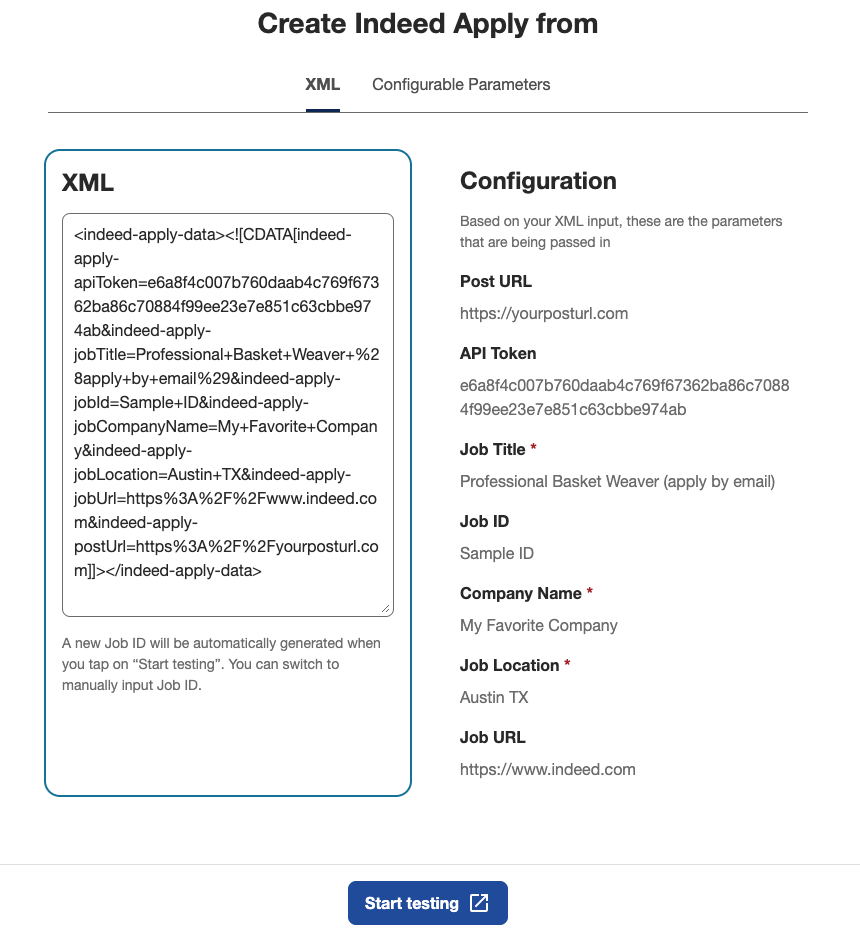
The first tab of the Indeed Apply XML Configuration Testing Tool lets you enter Indeed Apply metadata from XML and review it in the application flow. The Configuration section lists all parameters in the XML so you can review the detected job elements.
Indeed Apply XML configuration testing tool - XML tab
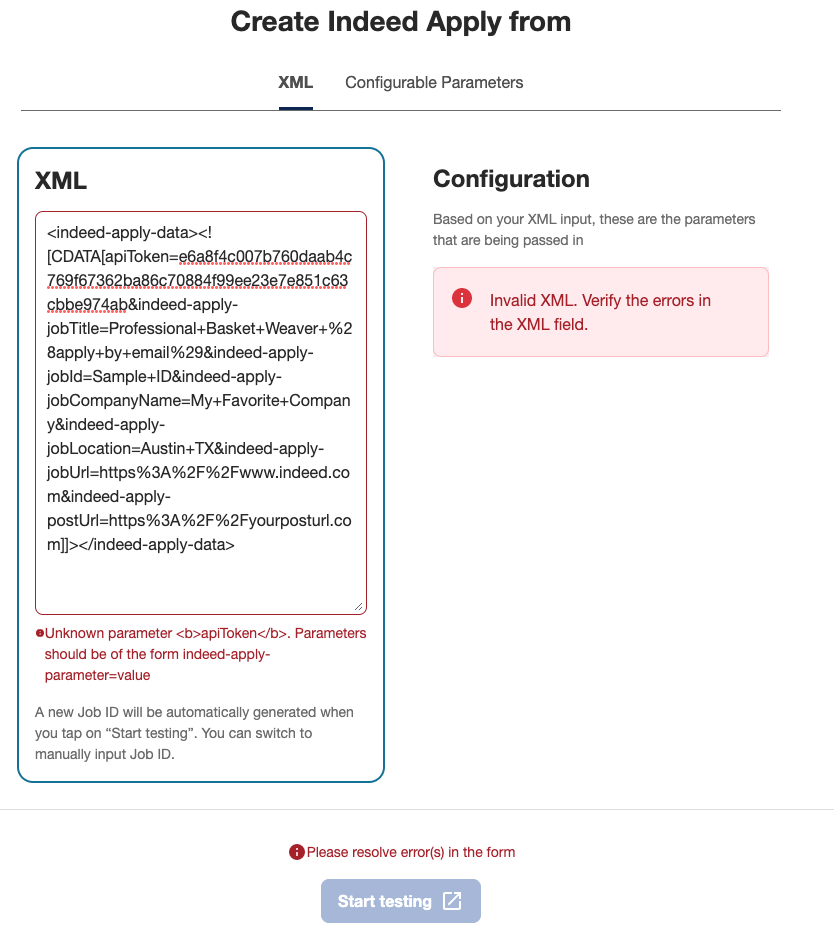
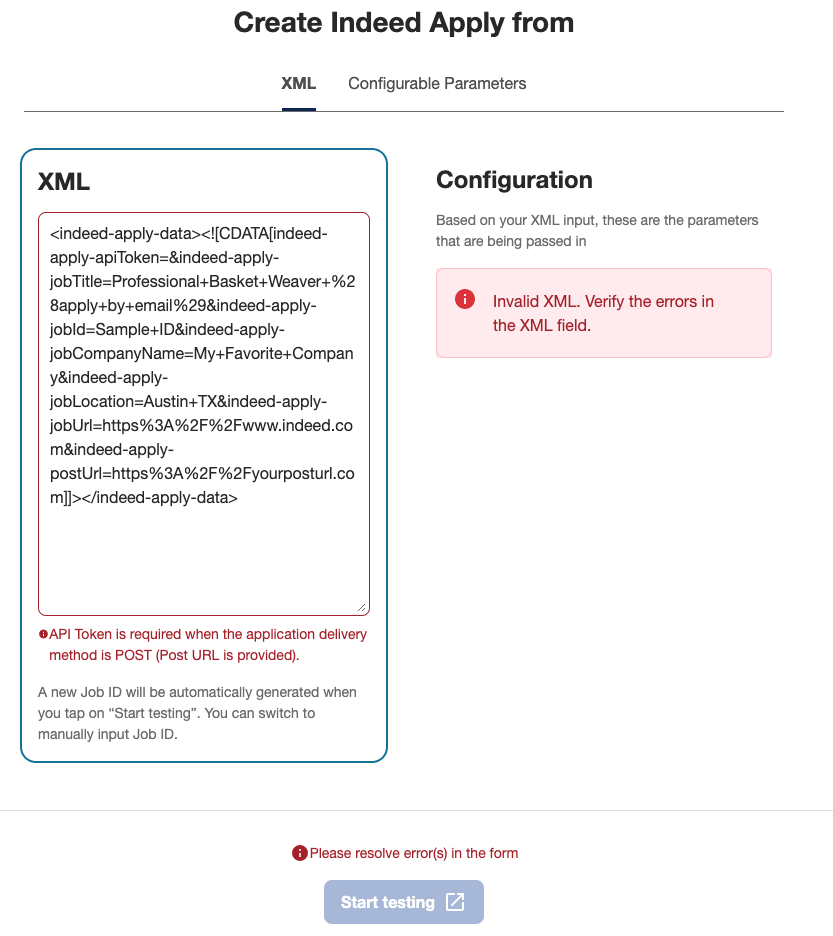
The tool also detects metadata errors that can cause Indeed Apply to fail, such as missing required parameters and formatting issues. If it finds an issue, it shows an alert.
Example: Incorrect parameter format error
Example: Missing parameter error
The second tab lets you enter configurable parameters and generates the matching Indeed Apply XML metadata. You can also preview how the job appears in the application flow.
After the tool generates the metadata, add it to your XML feed.
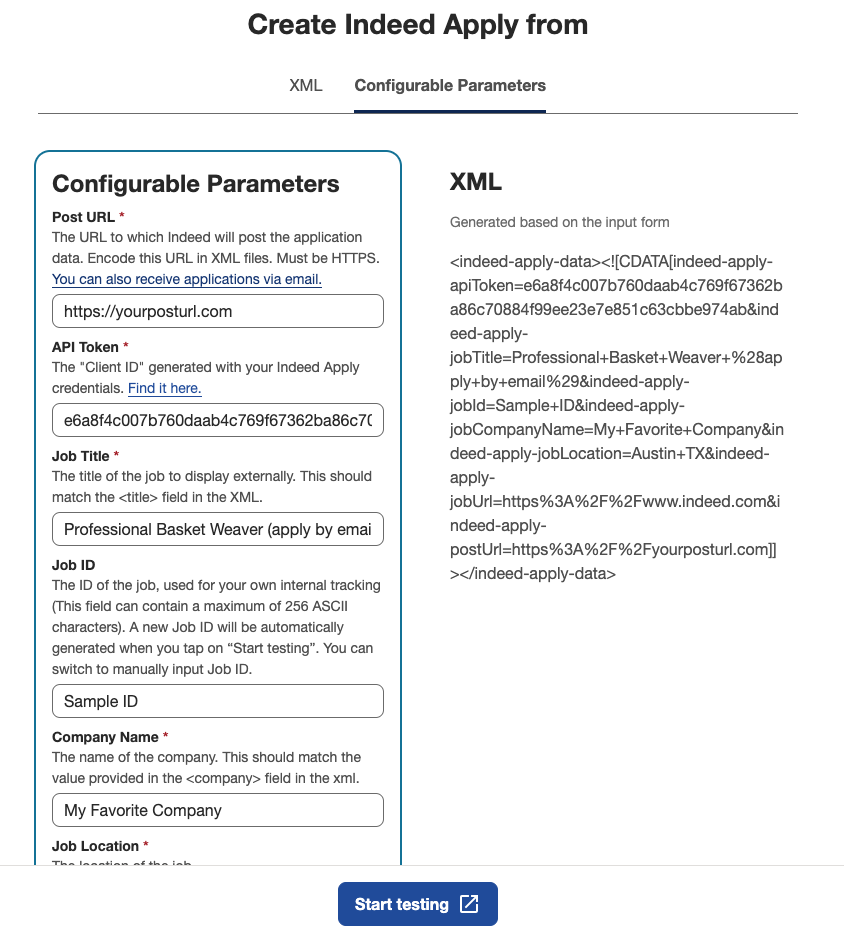
Configuration testing tool - Configurable parameters tab
You can add more parameters from a list of options. After you select and fill them in, the tool adds them to the generated XML.
This tool lets you mock up your Indeed Apply configuration. When you provide your postUrl in the Indeed Apply tags, you can walk through the application flow and POST the application to that URL.
Test your Indeed Apply screener questions
Use the Indeed Apply Questions tool to check the syntax of your screener questions JSON and see how the questions appear in the application flow.
Indeed Apply Questions tool
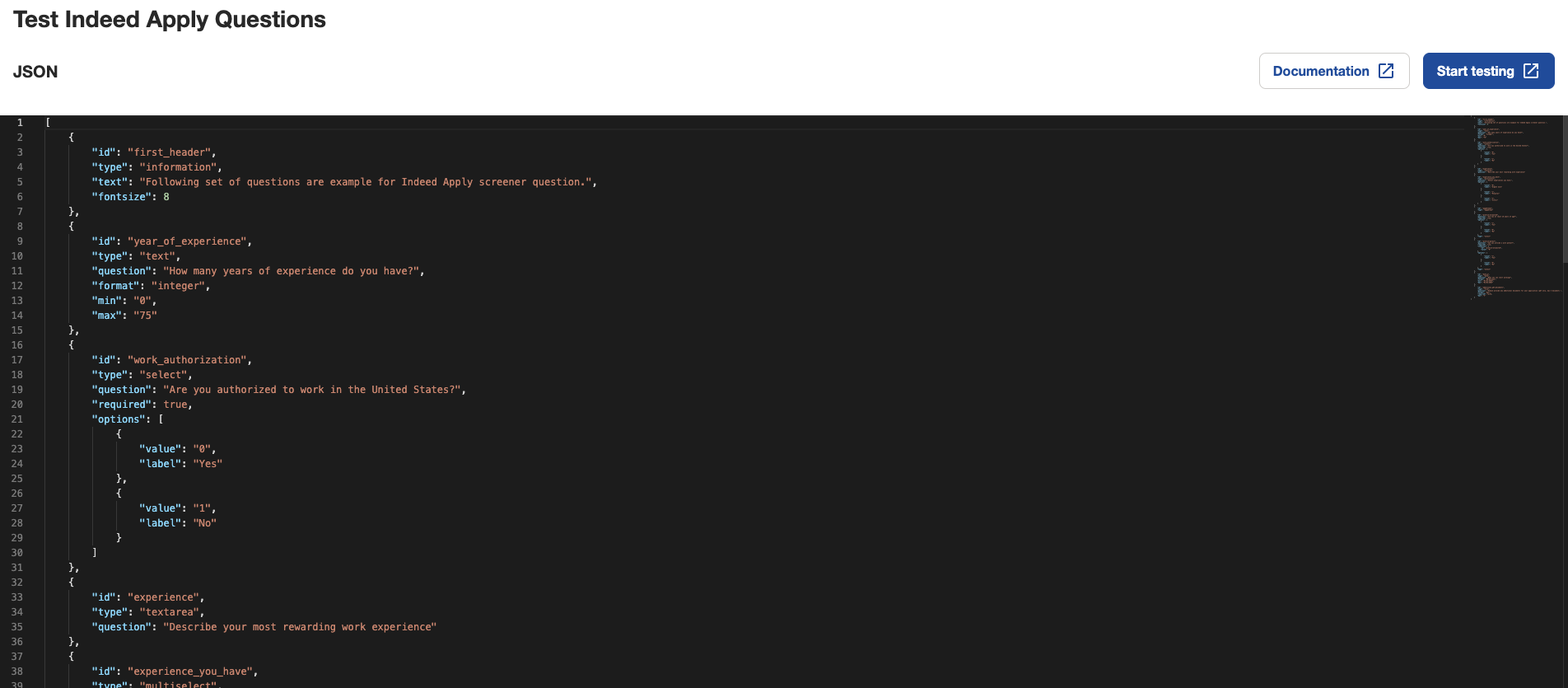
Paste your full JSON file into the main field to find formatting errors.
Error message examples

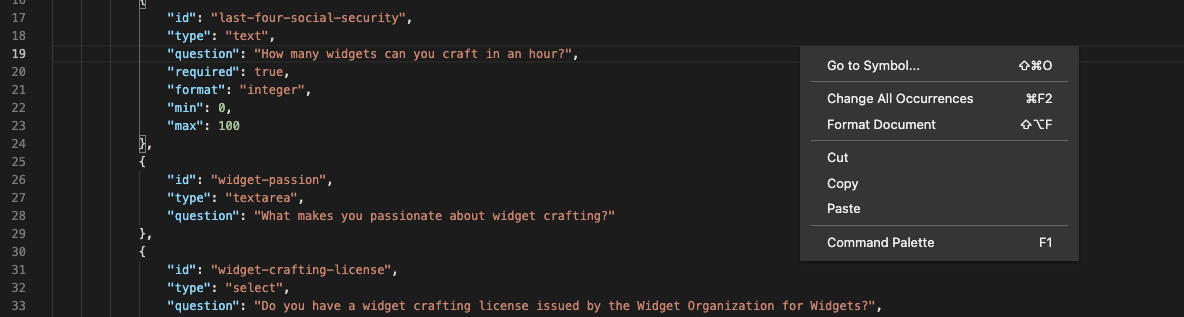
Right-click in the editor to run basic text commands.
Basic text commands
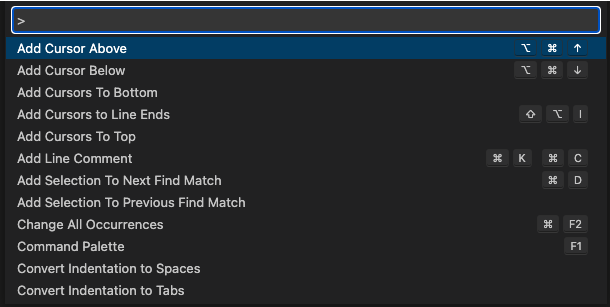
For more advanced commands, such as those in VS Code, open the Command Palette or press F1.
More advanced commands
The tool includes a link to this documentation so you can check JSON parameters when needed.
After your JSON is formatted correctly, select Start testing to preview how your screener questions appear to job seekers.
8. Monitor integration health
When you integrate with Indeed Apply, set up monitoring to verify that:
- Your integration delivers job applications successfully.
- Your questions files are valid and always available.
Indeed also monitors application delivery and other health indicators. If problems occur, Indeed might contact you. In some cases, Indeed can disable Indeed Apply for some or all jobs in your feed until you fix the issues.
Undelivered applications are not lost. If delivery fails, Indeed retries at regular intervals after the original submission. If delivery still fails, Indeed keeps applications for 60 days and can retry on request through your Client Success representative.
If your integration supports screener questions, verify that the pages hosting those files stay available, do not redirect, and use the correct format.
9. Submit your XML feed for review
Before you submit your XML feed to your Client Success representative, complete this checklist to avoid delays.
Pre-submission checklists
XML file
| Checklist | Confirm (Yes/No) |
|---|---|
Include all basic feed nodes, including the XML version and encoding: | |
Include a | |
Include every company associated with the jobs. | |
Do not include test jobs. | |
URL-encode all metadata URLs in the XML file, including | |
Do not include HTML escape characters such as | |
Include salary tags on all jobs. | |
Make sure the external ID matches the career site content. | |
Include an |
Indeed Apply - Screener questions
| Checklist | Details | Confirm (Yes/No) |
|---|---|---|
XML content | Include Indeed Apply parameters in each | |
URL-encode all URLs in the Indeed Apply parameters, including | ||
Send | ||
HTTP codes / Security for POST requests | Return HTTP | |
Return HTTP | ||
Return HTTP | ||
Return HTTP | ||
Return HTTP | ||
Return HTTP | ||
Verify the | ||
Use HTTPS for the Indeed Apply | ||
Alerts and logging | Enable alerts for
Provide an example of these logs as a screenshot or text file. | |
Enable alerts for Screener question logs should include:
Provide an example of these logs as a screenshot or text file. | ||
Job seeker application data delivery | Get the candidate's first and last name from | |
Capture and store uploaded CV files correctly. See the example. | ||
Capture and store Indeed Resume CV files correctly. See the example. | ||
Do not restrict application payload size. | ||
Screener questions | Build screener questions using the best practices. | |
Capture and store cover letters and other documents in the application. See Applicant fields. | ||
Do not ask for PII, such as a full Social Security number (SSN), in screener questions. | ||
General requirements | Identify Indeed Apply applications with the source set to “Indeed.” | |
Use the analytics field to categorize applications as organic, sponsored, or Indeed Targeted Ad. | ||
Make sure your SSL certificate is valid and current. |
10. Send disposition data to Indeed
Disposition data describes updates to an application in your system.
An update is any change in your workflow after a candidate applies, such as hiring the candidate.
Sending disposition data to Indeed helps improve application quality over time.
See the Disposition Sync API Guide.
See also
- Indeed Apply configuration reference
- XML feed with <indeed-apply-data>
- Maintaining User Safety and (Japanese) Indeed でのユーザーの安全性確保