- Integration overview
- Integration steps
- 1. Sign a Developer Agreement with Indeed
- 2. Authenticate
- 3. Create an XML feed
- 4. Configure Indeed Apply for your jobs
- 5. Add Indeed Apply screener questions
- 6. Receive application data from Indeed
- 7. Test your Indeed Apply configuration
- 8. Monitor integration health
- 9. Submit your XML feed for review
- 10. Send disposition data to Indeed
Indeed Apply integration guide for agencies and third parties
Integrate with Indeed Apply so clients can enable Easily Apply on their job posts and send applicant data to the right platform.
- By using this API and its documentation and building an integration, you agree to the Additional API Terms and Guidelines.
Integration overview
These instructions are for agencies.
If you integrate your agency platform or a third-party platform with Indeed, your clients can enable Easily Apply on their job posts and send applicants to the right platform. Indeed Apply improves the job seeker experience and can help clients hire faster.
To integrate your agency platform or a third-party platform with Indeed Apply, you need:
- A signed Developer Agreement between your company and Indeed. See 1. Sign a Developer Agreement with Indeed.
- A developer who knows your systems and HTTP, XML, and JSON.
- A way to publish and refresh the XML feed, such as FTP.
- A way to publish screener questions for job listings to an HTTPS URL.
- An Indeed Apply API token. See 2. Authenticate.
Past integrations usually take about six weeks to configure, test, review with Indeed, and deploy.
For an XML integration, create and regularly publish an XML feed to Indeed. The feed controls how your clients' Job Listings appear on Indeed. To enable Indeed Apply on Indeed.com, add metadata to each job. That metadata shows screener questions in the Indeed Apply flow and tells Indeed where to send candidate information in your system.
After you add the Indeed Apply metadata and any optional screener questions, Indeed reviews the feed for technical quality and policy compliance.
Work with the Indeed Integrations Delivery team to choose how you publish and update the feed, and to review feedback and required fixes.
Integration steps
1. Sign a Developer Agreement with Indeed
Sign a Developer Agreement with Indeed, then submit an integration request through Become an Indeed partner.
After Indeed approves your account, it enables access and sends a questionnaire about your integration.
2. Authenticate
After you become a partner, Indeed creates an app that integrates Indeed APIs and services into your product. Use Partner Console to get the app’s Indeed Apply API token. See Credentials.
Include this API token for each job you post to Indeed.
3. Create an XML feed
To configure Indeed Apply for your agency platform or a third-party platform, create and maintain an XML feed. An XML feed is an XML document that defines your jobs and how they appear on Indeed.
When your customers create job listings in your system, those listings flow from your XML feed to Indeed.
An XML feed includes:
| Item | Definition |
|---|---|
Basic feed nodes | General XML feed information, such as the XML version, encoding, and agency platform or third-party platform details. |
Job feed elements | Job details. Include one set of these elements for each job that appears on Indeed. |
If you create a job through either the createSourcedJobPostings mutation or an XML job feed, expiration of the job requires an action on your part. You must explicitly expire that job.
Even if someone calls the updateSourcedJobPostings mutation or clicks Edit on the Indeed job details page for this job, you must explicitly expire that job.
See also:
createSourcedJobPostingsupdateSourcedJobPostings- Job details page (signed in to Indeed)
- Job Sync XML feed reference
4. Configure Indeed Apply for your jobs
To let job seekers apply quickly on Indeed, enable Easily apply with Indeed Apply.
Jobs with Easily apply get 12% more clicks. Job seekers can also apply with their Indeed Resume.
To configure Indeed Apply for your jobs:
- Add Indeed Apply configuration parameters to an
<indeed-apply-data>element for each job in your XML feed. - Set
postUrlin<indeed-apply-postUrl>so Indeed can send applications to your system. - Make sure your system can parse and handle the application data.
See also:
- For configuration parameters, see Indeed Apply configuration parameters.
- For the
<indeed-apply-data>element, see the XML feed with<indeed-apply-data>example. - For more about Easily apply, see Policy - Indeed Apply and What does easily apply mean?.
5. Add Indeed Apply screener questions
Screener questions help employers quickly see whether an applicant meets their requirements, so they spend less time screening and more time connecting with candidates.
Indeed does not host screener questions for you. If your system supports them, you must implement them in Indeed Apply for your integration to be approved.
To show screener questions in the Indeed Apply flow, you can either:
-
Host the questions as JSON at an HTTPS URL.
Put that URL in each
<job>with<indeed-apply-questions>under<indeed-apply-data>. -
Call the Job Sync API to create a job posting with screener questions.
In January 2024, Indeed added schema versions for screener question configuration. Indeed updates the minor version when it adds features. The application payload shows the schema version as 1.X, such as 1.1 or 1.2. Keep this value flexible so your integration does not break. Your screener question JSON does not need to match the minor schemaVersion.
Considerations
-
You can ask up to 500 questions.
Conversion drops sharply when you ask more than 20 questions.
-
Question files can be up to 1 MB.
-
Indeed caches question files for unique question URLs. It refreshes them every 24 hours, or sooner if new requests arrive after the cache is more than 1 hour old.
-
Indeed does not let employers request unnecessary personally identifiable information (PII) in a job description or during the application process. For more information, see Maintaining User Safety.
When a job seeker starts Indeed Apply and Indeed requests questions, Indeed caches those questions.
See also:
6. Receive application data from Indeed
To receive application data from Indeed, specify a URL in the feed for each job.
Indeed sends candidate information for that job to this URL as JSON.
Application delivery
To process applications programmatically, specify a URL that accepts POST requests from Indeed Apply.
The <indeed-apply-postUrl> parameter defines this URL. It must use HTTPS.
postUrl example
_indeed-apply-postUrlConfirm that your system returns an HTTP 2XX status code for every application that it receives successfully. Indeed Apply treats any other HTTP status code, post timeout, or connection timeout as a failure.
If Indeed does not receive an HTTP 2XX status code because of a connection timeout, post timeout, or invalid HTTP response, Indeed retries the application. Indeed uses exponential backoff for automatic retries. If delivery still fails after the last automatic retry, Indeed terminally fails the application.
Partners should not validate the content of the job application during the POST. If you want to validate the job content and disqualify the applicant, do that downstream of the POST. If partner validation of job seeker data causes HTTP failures, Indeed Apply might be disabled for the company where the application was submitted or for the entire feed.
See the Application delivery reference.
Do not redirect the POST request to another URL, such as through a 301 or 302 redirect. Indeed Apply does not support redirects.
Duplicate applications
For the purposes of responding to the POST, treat an application as a duplicate only if it is for the same job ID and from the same job seeker email as an Indeed application within the last 120 days.
Do not use applications originally submitted from a source other than Indeed to determine whether an application is a duplicate when responding to the POST. Likewise, do not treat applications from the same job seeker email to a different job ID at the same company as duplicates.
Application data
Because Indeed sends application data as the raw body of the HTTP POST request, your system cannot process the request like a typical form. The request body contains a JSON document that your system must read and parse. Indeed does not provide all JSON fields, so use a robust JSON parser that treats missing fields as empty and ignores unrecognized fields.
A JSON data payload has no maximum size.
The POST body uses UTF-8 encoding and includes an authenticity header that lets you verify that Indeed sent the application.
A file portion of the Applicant field contains these fields: contentType, data, and fileName.
Indeed determines contentType from the fileName.
The data field contains the raw resume file, encoded in Base64.
The third party must support these file types: .txt, .pdf, .doc, .docx, and .rtf.
If the third party already has a saved version of the resume in its system, it must still store and use the updated version in the application JSON.
For application data details, see the Application data reference.
Authentication of the POST request
Indeed Apply sends a POST request to your postUrl with an HTTP header that lets you verify that the POST is authentic.
Using the shared API secret for the Indeed Apply credential type, Indeed uses the HMAC-SHA1 algorithm to compute a message signature. Indeed sends this signature as an HTTP X-Indeed-Signature header.
To generate signatures, Indeed Apply uses the full unaltered JSON payload, including the curly brackets ({}), and the shared secret.
For code examples that show how the message signature is generated, see the Message signature generation reference.
Supported SSL certificates
For supported certificates, see the Trusted root SSL certificates.
If your certificate is not on the list, contact the Integrations Delivery Team.
7. Test your Indeed Apply configuration
Indeed provides tools to test the components of your Indeed Apply integration. Review these topics to find the available tools and fix integration issues early.
Test Indeed Apply application flow and applicant delivery
To test your integration setup and confirm that everything works smoothly before you push a job or integration live, use the Apply XML configuration testing tool.
You can enter your Indeed Apply XML metadata for a job into the tool, or the tool can generate XML metadata for you from several configurable parameters. The tool identifies formatting and content errors so you can quickly find issues.
If the tool detects no errors, it shows the Start testing button. Select it to preview the application process as a job seeker and submit a test application to confirm that the process works correctly. If your postUrl is valid, the test application sent to the postUrl with the application data payload can help you confirm that your system parses the JSON document correctly and that applicant information appears in your system as expected.
Test your Indeed Apply XML metadata
The first tab of the Indeed Apply XML configuration testing tool lets you enter Indeed Apply metadata from XML and review it in the application flow. The Configuration section lists every parameter in the XML so you can see your detected job elements.
For the supported parameters, see the Indeed Apply configuration reference.
Indeed Apply XML configuration testing tool - XML tab
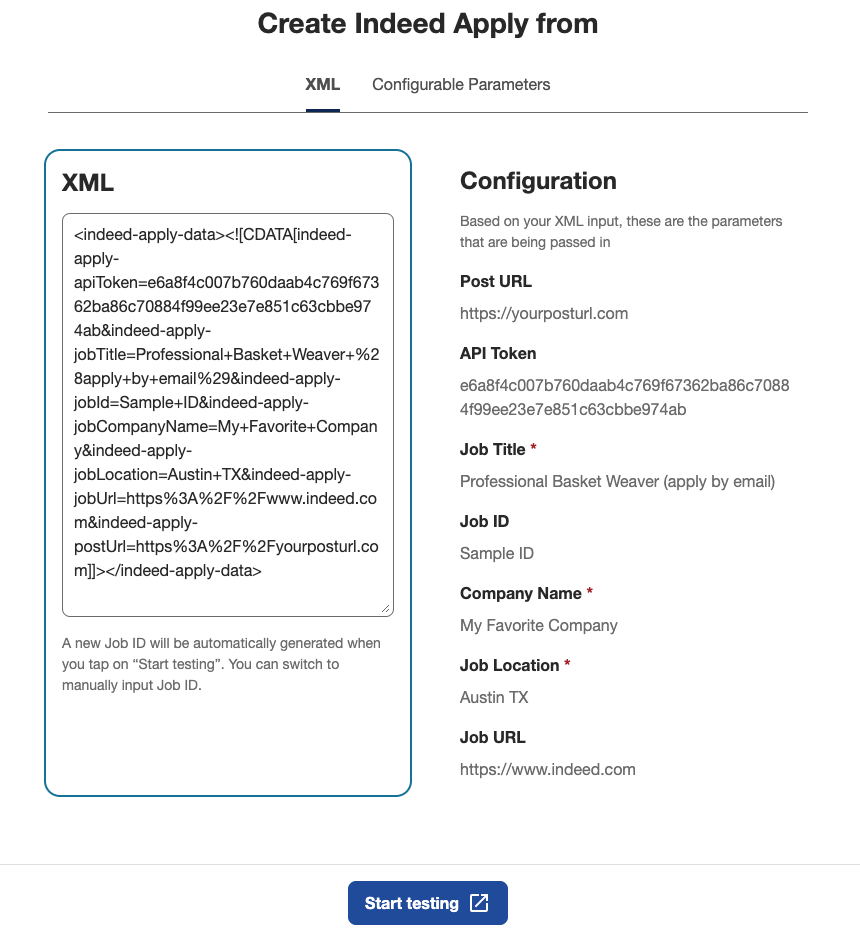
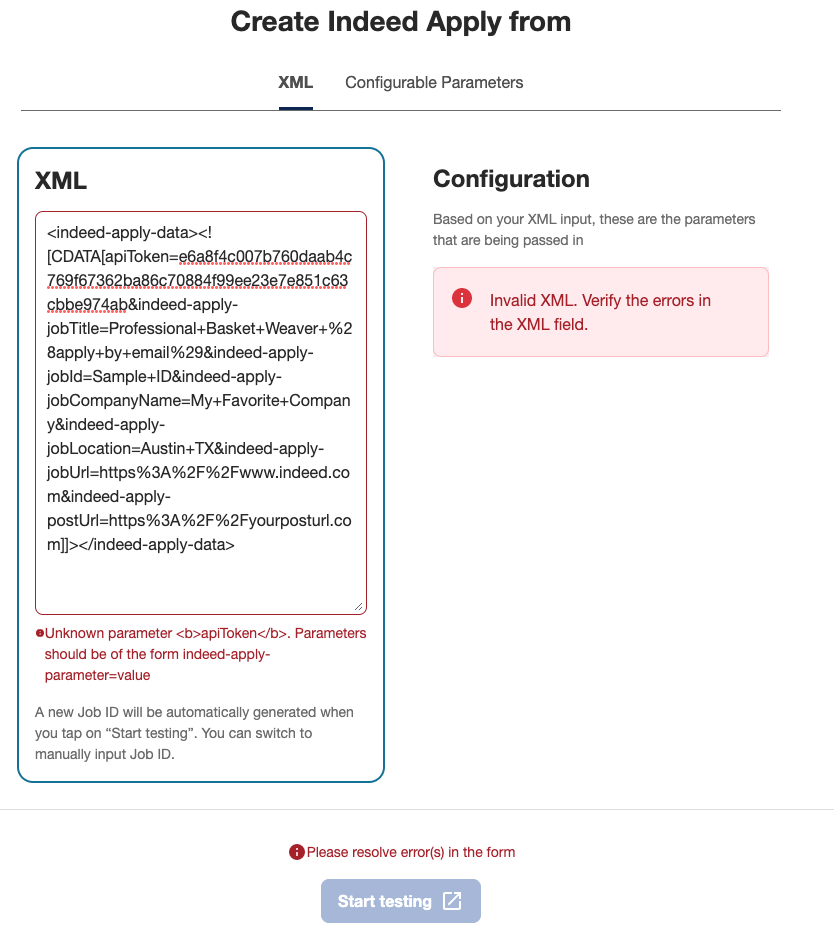
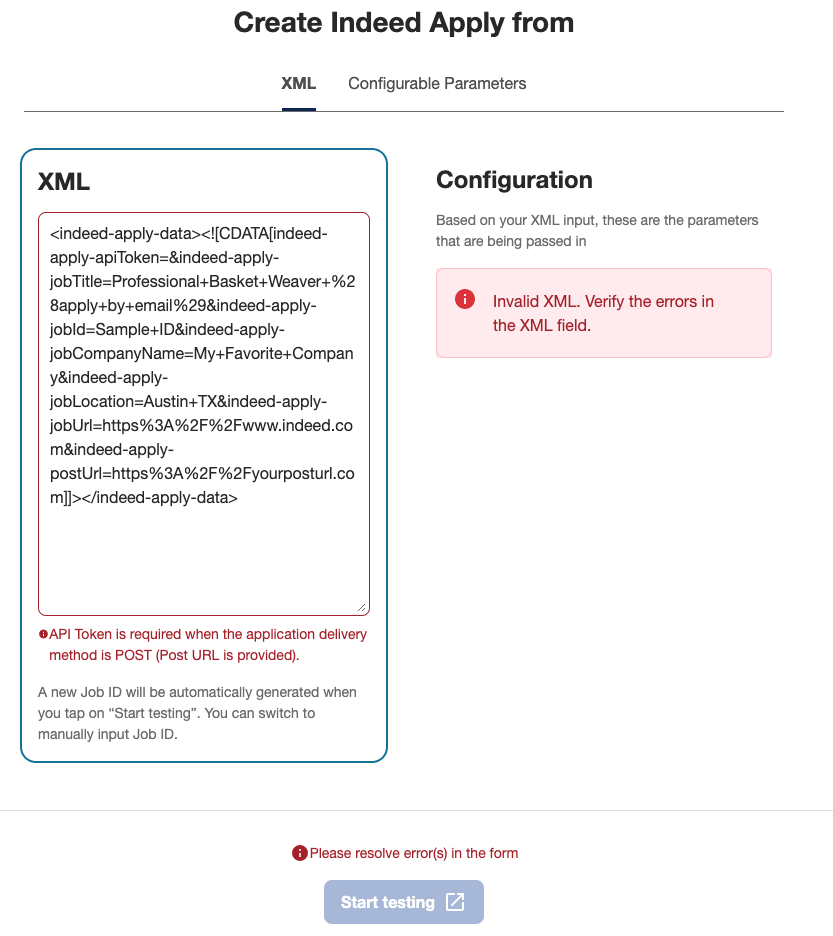
The tool also flags metadata errors that can break Indeed Apply, such as a missing required parameter or an incorrectly formatted file. In either case, the tool shows an alert.
Example: Incorrect parameter format error
Example: Missing parameter error
The second tab lets you fill in configurable parameters and generates the matching Indeed Apply XML metadata. You can also preview how the job appears in the application flow.
After the tool generates the metadata, add it to your XML feed. For an example, see Create an XML feed.
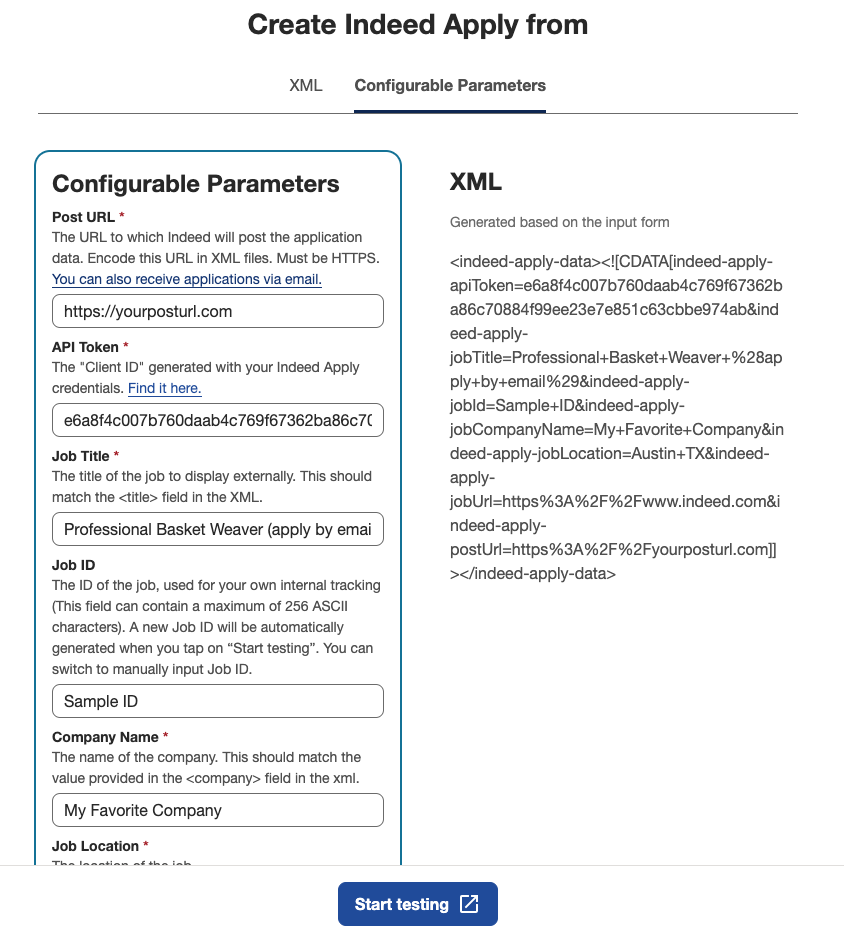
Indeed Apply XML configuration testing tool
Beyond the default parameters, you can add more from a list of options. After you select and fill them in, the tool adds them to the generated XML.
This tool lets you mock up your Indeed Apply integration. Provide your postUrl in the Indeed Apply tags to walk through the application experience and post the application to that URL with the tool's sample data.
Test your Indeed Apply screener questions
Use the Indeed Apply Questions tool to check the syntax of your screener questions JSON and see how the questions appear in the Indeed Apply flow.
Indeed Apply Questions tool
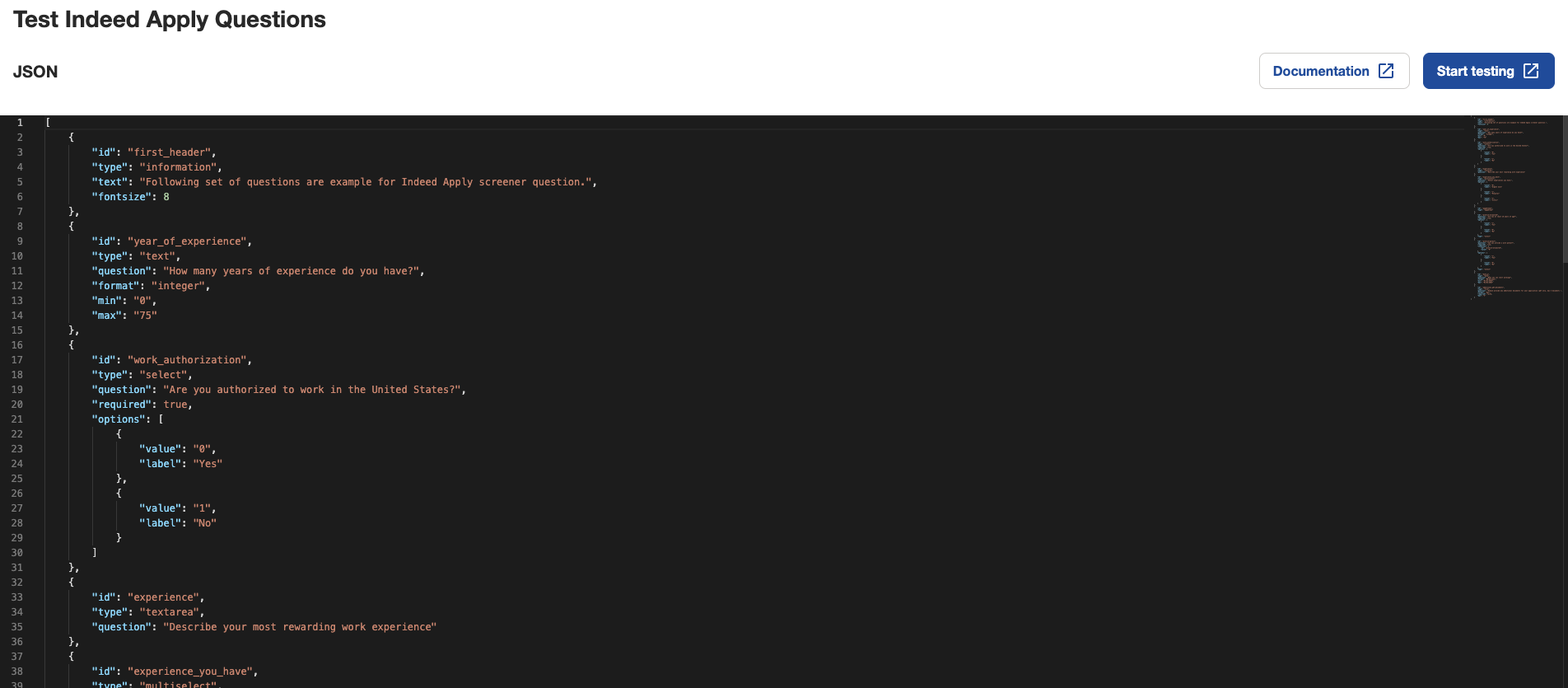
You can paste your entire JSON file into the main field of this interactive tool to highlight errors in formatting.
Error message examples

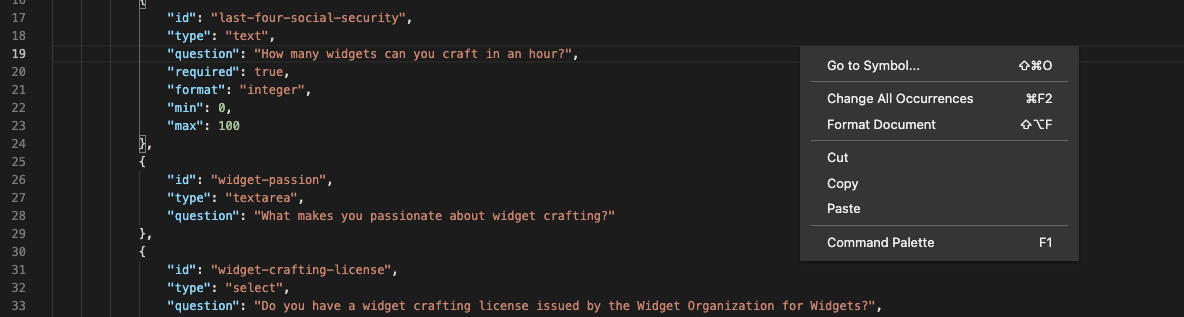
Right-click on the editor to run basic text commands.
Basic text commands
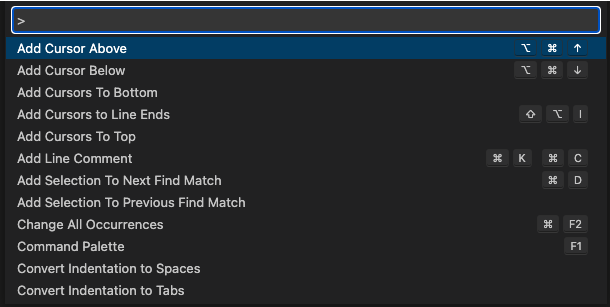
For more advanced commands, such as those in VS code, select Command Palette or press F1.
More advanced commands
The tool also includes a link to this documentation so that you can reference the relevant JSON parameters as needed.
After your JSON appears to be formatted correctly, select Start testing to see a preview of how your screener questions appear to job seekers.
8. Monitor integration health
When you integrate with Indeed Apply, set up monitoring to ensure that:
- The integration successfully delivers job applications.
- Questions files are valid and consistently available.
Indeed also monitors whether applications reach agency platforms or third-party platforms successfully, along with other integration health indicators. If problems arise, Indeed might contact you. In some cases, Indeed can disable the Indeed Apply feature for some or all of your feed’s job listings until you correct the issues. Indeed does not lose undelivered applications. If delivery fails, Indeed retries automatically at periodic intervals after the original application is submitted. If delivery remains impossible, Indeed retains applications for 60 days, and you can request additional retries by contacting the Integrations Delivery Team.
If your integration supports screener questions, confirm that the pages that host those files are consistently available, do not redirect, and are properly formatted.
9. Submit your XML feed for review
When development is complete, submit your XML feed to your technical point of contact for review, or request support from Partner Console.
10. Send disposition data to Indeed
Disposition data is information about updates to an application in your agency platform or a third-party platform.
An update can be a change in a recruiter's workflow or an action that a recruiter or candidate takes after the candidate applies. For example, a candidate is hired.
When you send disposition data to Indeed, your clients receive higher-quality applications over time.
See the Disposition Sync API Guide.